Maintaining control and visibility of files within SharePoint sites is important so you can monitor who is interacting with your files and when. This is especially true when you’ve opened your organization’s platform to third parties. One way to securely allow external users to upload or download files from your SharePoint site is by using secure web portals with Couchdrop.
In this article, we'll show you how to create monitored secure web portals in Couchdrop that external users can use to upload files to a SharePoint site or download files from a directory in a SharePoint document library.
How to create secure web portals in Couchdrop
Couchdrop has two different types of secure web portals that can be whitelabelled in branding settings. External users don't need a Couchdrop account to use either portal type.
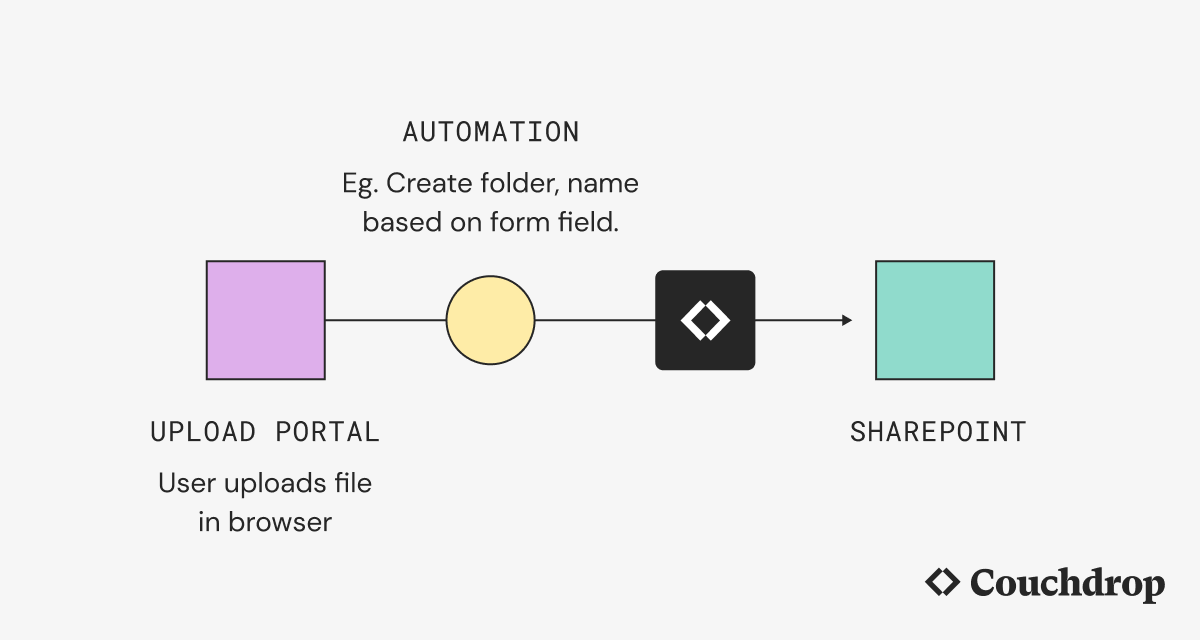
An upload link is a link to a web portal where users can securely upload files to a connected directory. In this example, the directory is in SharePoint, though the same process applies to any of Couchdrop's 30+ storage integrations.
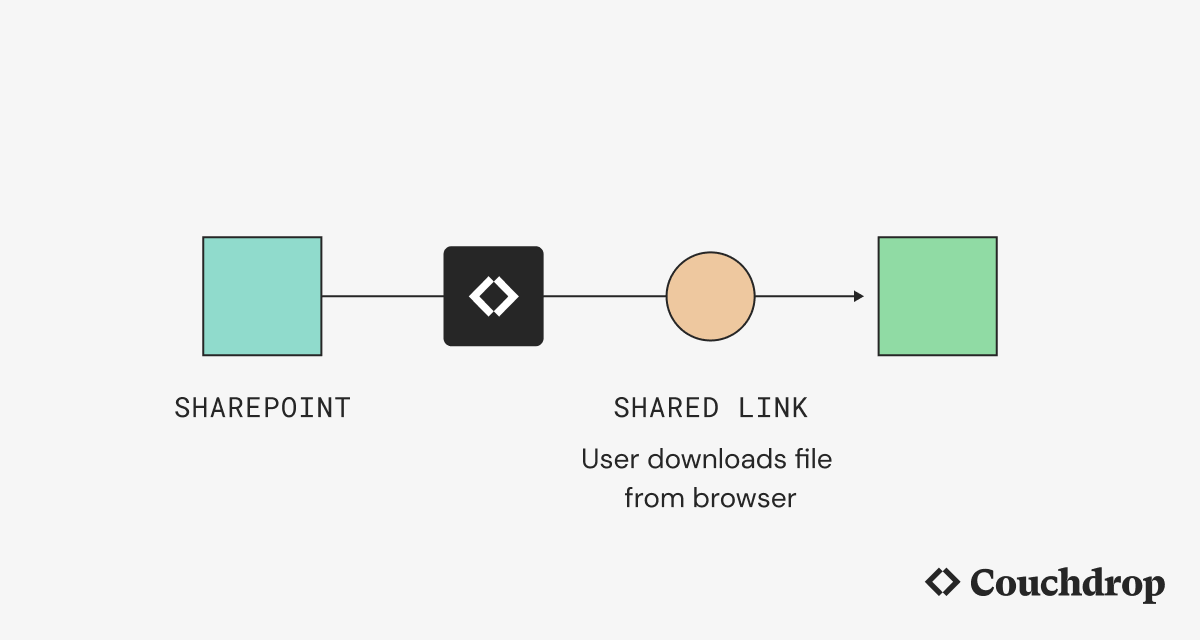
Shared links are for the opposite process, where your organization needs to securely share files from a connected storage directory. These would be files within a folder in a specific SharePoint document library in this example.
The process for creating either type of portal starts out the same. First, you need to connect your SharePoint account and choose a directory. After that, you set up the specific portal for uploading or downloading files.
We'll explain the process for both in more detail below.
Connecting SharePoint
The first step is to integrate SharePoint with Couchdrop. Log in to Couchdrop and choose to create a new storage connection, then choose Sharepoint from the list of options.
Give a name for the integration itself and for the SharePoint folder that will be displayed in Couchdrop's virtual file system. Couchdrop supports connecting to both standard SharePoint sites and sites in GCC tenants. To connect to a GCC site, change the endpoint type, and the fields will change appropriately.
With either account type, we recommend connecting via delegated access, which is a simple OAuth process. If you are unable to connect via this method due to organization policies or other restrictions, you can also connect by registering an application in Microsoft Entra for Couchdrop and providing access via that application.
After completing the connection, Couchdrop will test the integration to make sure it’s working as expected and will tell you if there is an error or if the connection is successful. Once successful, you can choose which folder in Couchdrop will be the mount point for SharePoint and act as the root.
Keep track of file transfers with reporting and alerting
One of the primary benefits of using secure portals is that they are fully tracked and auditable. Each time a portal is accessed, attempted to be accessed, or used successfully, Couchdrop records the event. You can turn on alerts to be notified for uploads, downloads, and/or failed attempts. All information is recorded in detailed logs that track all system events, including file transfers.
These logs are viewable by admins in the Admin console and can be broken down by type. They also support smart searching, so you can easily find the information that you need.
How to create a secure upload portal for SharePoint
Upload links allow external users to securely send files to you via a web upload form. The form can be customized to gather additional information to accompany the uploaded files, and you can optionally configure a message for users that will be shown alongside the portal.
When creating an upload link, you'll be prompted to create a link type with some preconfigured permissions and settings, such as one-time use and password protection. These settings can be updated at any time, or you can also create a fully customizable upload link with advanced settings.
Once the upload link is created, simply provide the link to your users and they can upload files using the portal that you've configured.
How to create a secure file share portal for SharePoint
Shared links are a secure and easy way to share files with a link. When users click on the shared link, they will be taken to a web portal where they can download files that reside in the connected storage directory.
Like with upload links, shared links have configurable security settings like password protection, email allow list, and an expiration period. They can also be set to one-time use to download a single file once.
Once the shared link is created, share it with the users who need to download files. Clicking the link will take them to the download portal where they can download files from the SharePoint directory.
Test Couchdrop with a 14-day free trial
Creating secure file sharing portals for SharePoint is easy with Couchdrop and only takes minutes. Want to try it for yourself? You can try Couchdrop free for 14 days with no credit card required and no hoops to go through. Simply sign up and try it out. Start your free trial today.