SSH key authentication adds an extra layer of security to your SFTP connections. It can also make your connections more convenient. Instead of typing passwords, your server recognizes your unique digital fingerprint. This method is virtually impossible to crack and streamlines your workflow once configured.
This guide will walk you through a brief overview of SSH keys, some different methods of creating SSH key pairs, and how to configure your Couchdrop SFTP server to use SSH keys.
What are SSH keys?
SSH keys are cryptographic key pairs that provide a more secure alternative to password authentication for SFTP connections. They consist of two mathematically linked components: a private key (kept secret on your local machine) and a public key (shared with the server).
The public key is shared with the server you want to connect to. They will need to add it in order for you to authenticate. Your corresponding private key is then used to prove your identity to the server to allow you to access it.
When everything is added properly connnecting is incredibly smooth and simple. It also provides security advantages over password-based authentication.
SSH Key advantages over password-based authentication
- Enhanced Security: Private keys are typically 2048-4096 bits long, making brute force attacks computationally impossible (unless you happen to have a quantum computer lying around, and even then, not likely). We recommend using 4096 bit key length unless there's a specific requirement not to.
- No Network Transmission: Keys never travel over the network during authentication
- Automation-Friendly: Scripts and automated processes can connect without storing passwords
- Centralized Management: Revoke access by simply removing the public key from the server
For more details on SSH keys and how they work, see What is an SSH key and how are they used for SFTP?
How do you generate SSH key pairs?
SSH key generation creates your cryptographic credentials for secure SFTP access. The process varies slightly depending on your operating system but follows the same core principles.
Key generation best practices
| Setting | Recommendation | Reason |
|---|---|---|
| Key Length | 2048 bits minimum, 4096+ preferred | Stronger encryption resistance |
| Passphrase | Use complex passphrase | Additional security layer |
| File Location | Store in ~/.ssh/ directory | Standard SSH directory |
| Naming Convention | Descriptive names (e.g., work_sftp_key) | Easy identification |
Generating keys On Mac, Linux, or Unix systems
Open your terminal and run the ssh-keygen command:
ssh-keygen
Generating public/private rsa key pair.
Enter file in which to save the key (/.ssh/id_rsa): sftp_key
Enter passphrase (empty for no passphrase):
Enter same passphrase again:
Your identification has been saved in sftp_key
Your public key has been saved in sftp_key.pub
This process creates two files:
- sftp_key (private key - keep this secure)
- sftp_key.pub (public key - share with servers)
See How to generate an SSH key on Mac or How to generate an SSH key on Linux for more details.
On Windows systems
Windows users can generate SSH keys using PuTTYgen or the built-in OpenSSH client in Windows 10/11:
Using Windows PowerShell:
ssh-keygen -t rsa -b 4096 -C "your_email@example.com"The output structure remains identical to Unix systems.
See How to generate an SSH key on Windows for more information.
Setting up SSH keys in Couchdrop
For Couchdrop users, using SSH keys is as simple as a checkbox when adding a new inbound SFTP user. Couchdrop automatically generates the key pair and provides you with the credentials to send or download immediately.
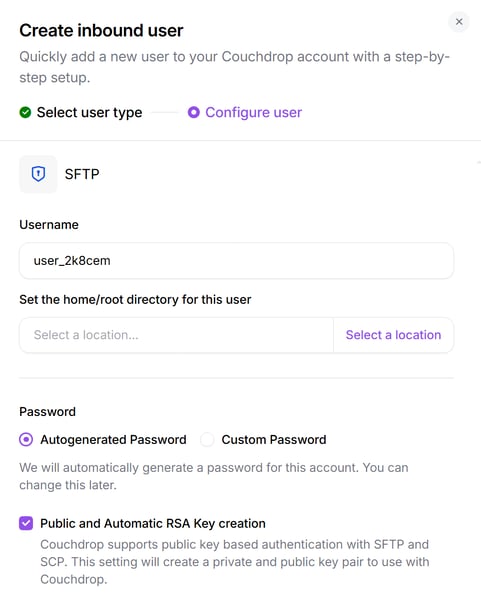
Once generated, you can download the credentials and key details or send them directly from Couchdrop.
Configuring SSH keys for existing users in Couchdrop
For existing Couchdrop SFTP users, the process for adding SSH keys is slightly different. First, you'll need to generate the keys in some way, such as shown previously.
Once generated, you then add the public key to the user profile.
Here is the process for adding public SSH keys to a user:
- Access your Couchdrop dashboard
- Navigate to your Users list
- Select the target user account and click "Edit"
- Navigate to Access Controls
- Paste your public key content in the Public Key field. Here, you can also choose to require both a Public Key and a password to log in.
Your public key should look like this:
ssh-rsa AAAAB3NzaC1yc2EAAAADAQABAAABgQDGB7TVVHUukb4cCDHQqmomNblw4vBOYabZyrJ7fGumI9+3N9YBZewkekcKESyjYqymbPal8cOEMOXToiDEhI04oEkcFYy3LWbclt+qEaakKqBWMJqJp3+V0LE+RfichkfZvBuhYhgP7iS4UVbtk8+KMqHz2E3PUHGULQ+rGBItg0ieOC8Z/6IA+nLyogopuvoABvp10HH2p8nl/zux6GJsx6PKPXABaxvoaxqPIpmQDvFJAO4p+q3S4xe0em60x6Y4AEDZnmGtlcURElVM9lxp/FXMKPEyb7qLyKmh++LRtKH5GnBehMZdzOyQJFQxZMk849lwcUNp3x2qTJVUvW0vsSq6X7UrGlUTHdJ3uFrMrJmk3+f499BaKw9n8t28Gx57W3CueuJZ7a9n/a5DSBG0gzR7GzZxhhXSrKIM7ilK+HVrE19/XdutKootd5f6kmtZpub6+lSLoPI0Ht6p9pgLKCsLhbS3t7Esy1T9g1mGChV5Qd0D2LPPSsUiVAf/jik= user@hostnameAdding the SSH key to your SFTP client
To use your SSH keys with Couchdrop or any other SFTP server, you'll need to add the private key to your SFTP client.
Different SFTP clients have different locations where you add your private key files. Some common options are here; refer to your SFTP client documentation for the most accurate and up-to-date information.
| Client | Key Configuration Location |
|---|---|
| FileZilla | Site Manager → Advanced → Key file |
| WinSCP | Session → Advanced → SSH → Authentication |
| Cyberduck | Connection settings → SSH Private Key |
Once the client connects successfully with the key, many of them will save the information so the connection will be easier next time.
Try Couchdrop for a secure cloud SFTP server
Couchdrop is a fully-managed cloud SFTP server that is simple, secure, and reliable. You can easily use SSH keys with SFTP users and add additional security through enterprise grade-security controls at both the user and organization level.
To find out more about how Couchdrop works with SSH keys or to see it in action, book a demo with our team now.