Because of the different protocols involved, connecting SFTP users to S3 is something that seems like it might be challenging. While it’s certainly possible to SFTP to S3 using AWS, it requires setting up and using AWS Transfer Family.
Although both AWS Transfer Family and AWS S3 are run by Amazon, it’s not the best option in many scenarios. In fact, compared to Couchdrop, it requires more management, more technical skill, higher IT overhead, and has much greater price volatility.
In this article, we'll show you how to connect Couchdrop to an S3 bucket, how to see and access the S3 bucket data in the Couchdrop interface, and how to let external users connect to the bucket through an SFTP client and by using the Couchdrop interface.
How to connect SFTP users to an S3 bucket in Couchdrop
One of the strongest elements of Couchdrop is the simplicity, especially for transfers involving SFTP. Connecting external users to S3 buckets is easy and only requires a few simple steps:
- Connect the S3 bucket to Couchdrop to use as an SFTP endpoint
- Create SFTP users and give them access to the S3 connection
- Provide users or systems the credentials so they can connect via SFTP.
Step 1 - Connecting the S3 bucket
In Couchdrop, choose to create a storage connection and then choose Amazon S3. From there, you’ll be prompted to name the connection itself and a name for the folder path in Couchdrop. This folder path is simply a virtualization; files sent to this virtual folder will end up directly in the mapped S3 bucket instead.
For the purposes of this guide, we’ll call this S3 Bucket 1.
Add the details for the S3 bucket, including the S3 Access Key and Key Secret, and the name for the bucket and/or region if needed. After you save and test the connection, it is ready to use immediately.
Once you’ve successfully connected to S3, you can access bucket data directly in Couchdrop’s web interface. Simply click on the Browser and find the name of the folder where you mounted ( S3 Bucket 1 in this case). Admins can also check the Integrations tab to see which type of storage a folder is connected to and recent activity in that folder.
Because the connection is a virtualization of the S3 bucket, you can work in either platform and it will reflect in the other. For example, if you were to delete a file in the bucket, it would disappear from Couchdrop and vice versa. This happens because you are directly accessing the bucket data and Couchdrop is simply a visualization of that data.
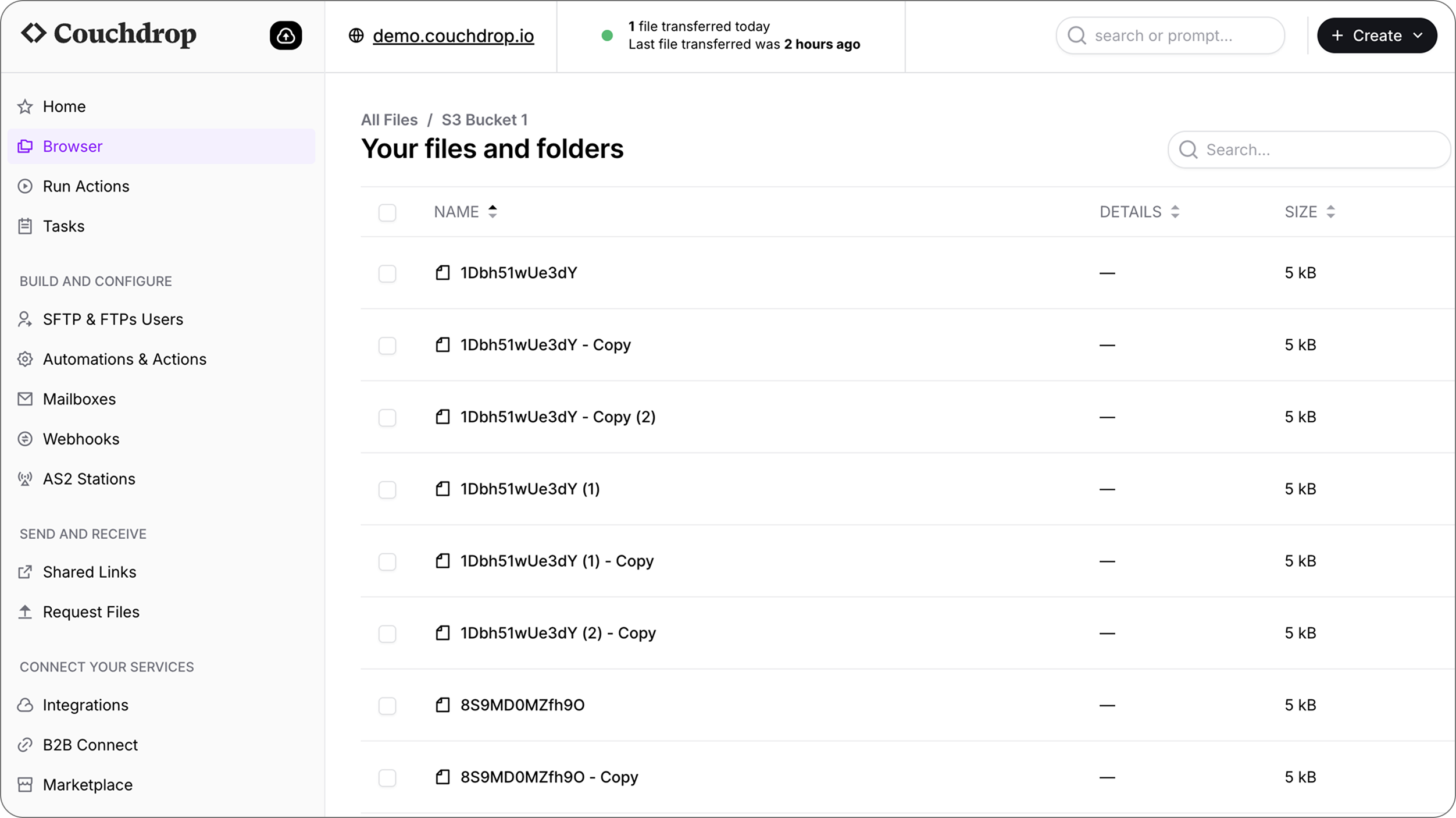
S3 bucket data shown in Couchdrop
Alternate S3 Storage connections
While Amazon S3 has a native connector in Couchdrop, it’s not the only S3-backed storage that Couchdrop supports. Along with native integrations with platforms like Wasabi, Backblaze, and Filebase, you can also use the S3 Compatible connector to connect to any S3 Compatible provider implementing the S3 API.
Besides the initial connection–which requires adding the S3 compatible Endpoint URL–the rest of the setup process is the same as using AWS S3.
Step 2 - Creating SFTP users
When the S3 bucket is successfully connected, the next step is to create the SFTP users and map them to that bucket.
To do this in Couchdrop, choose to create a new SFTP User. If you choose the “SFTP User” option during setup, Couchdrop will pre-generate a user with an autogenerated password. You can proceed with this user by selecting the home/root as the S3 Bucket 1 from Step 1, or change anything like the username manually before continuing.
Couchdrop supports public key-based authentication with SFTP. You can specify this by checking the box during user creation to create a private and public key pair to use with Couchdrop.
Step 3 - Provide credentials to partners/systems
After generating the credentials, the last step is to pass along those credentials.
When people will be using them, it’s incredibly simple. Couchdrop allows you to share the credentials directly from the platform and can send them via email, with the option to exclude the sensitive components like password and private key.
For systems, the credentials will need to be added there. You can download the credentials, including the SFTP private key, as a file or copy them from Couchdrop.
To check how to connect as a user at any point, you can click the cloud icon at the top of the screen and select the user you want to connect as. This will show your hostname, port, and username, but not the password or keys. Admins can reset passwords for users on their own if needed without having to get in touch with the Couchdrop team.
How to SFTP to S3 buckets
Once you have everything connected, there are several ways you can use the S3 connection to exchange files with the S3 bucket.
Two ways we’ll cover here are using an SFTP client and using the Couchdrop interface.
SFTP to S3 with an SFTP client
The credentials generated earlier can be used to connect to the S3 bucket. These users can then use the credentials to connect through the client of their choice such as FileZilla or Cyberduck.
Simply add the credentials where specified to connect via the client.
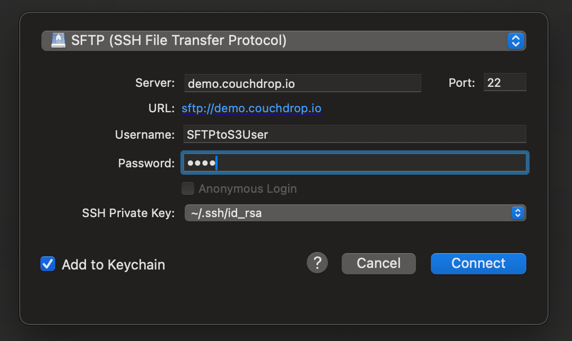
Connecting to an S3 bucket using Cyberduck
The basic flow looks like this:
- The SFTP user adds the credentials to their client. The SFTP connection is authorized, which allows them to connect to your Couchdrop account with scoped permissions.
- The user's root folder is a virtualization of the S3 bucket. So by connecting to Couchdrop, they are really connecting directly to the S3 bucket.
- The user can interact with the bucket using the permissions provided to them. The granular permissions allow for scenarios such as read-only, write-only, and disabling deletions.
If you need to have multiple users connect to the same S3 bucket, that’s simple too. Couchdrop allows you to create multiple users with different credentials and permission sets.
You can also set up new storage connections to connect to multiple different S3 buckets, including ones from different providers, all in one place.
Connecting to the S3 bucket using the Couchdrop interface
For less technical clients or to simply give an alternative option to connect to the S3 bucket, you can have users connect through the Couchdrop interface.
To do this, the credentials are the same, but instead of using them for a client, they simply need to use them on the Couchdrop login page.
Users who log in will get a stripped-down version of the already-simple interface to make it easy for them to find exactly what they need.
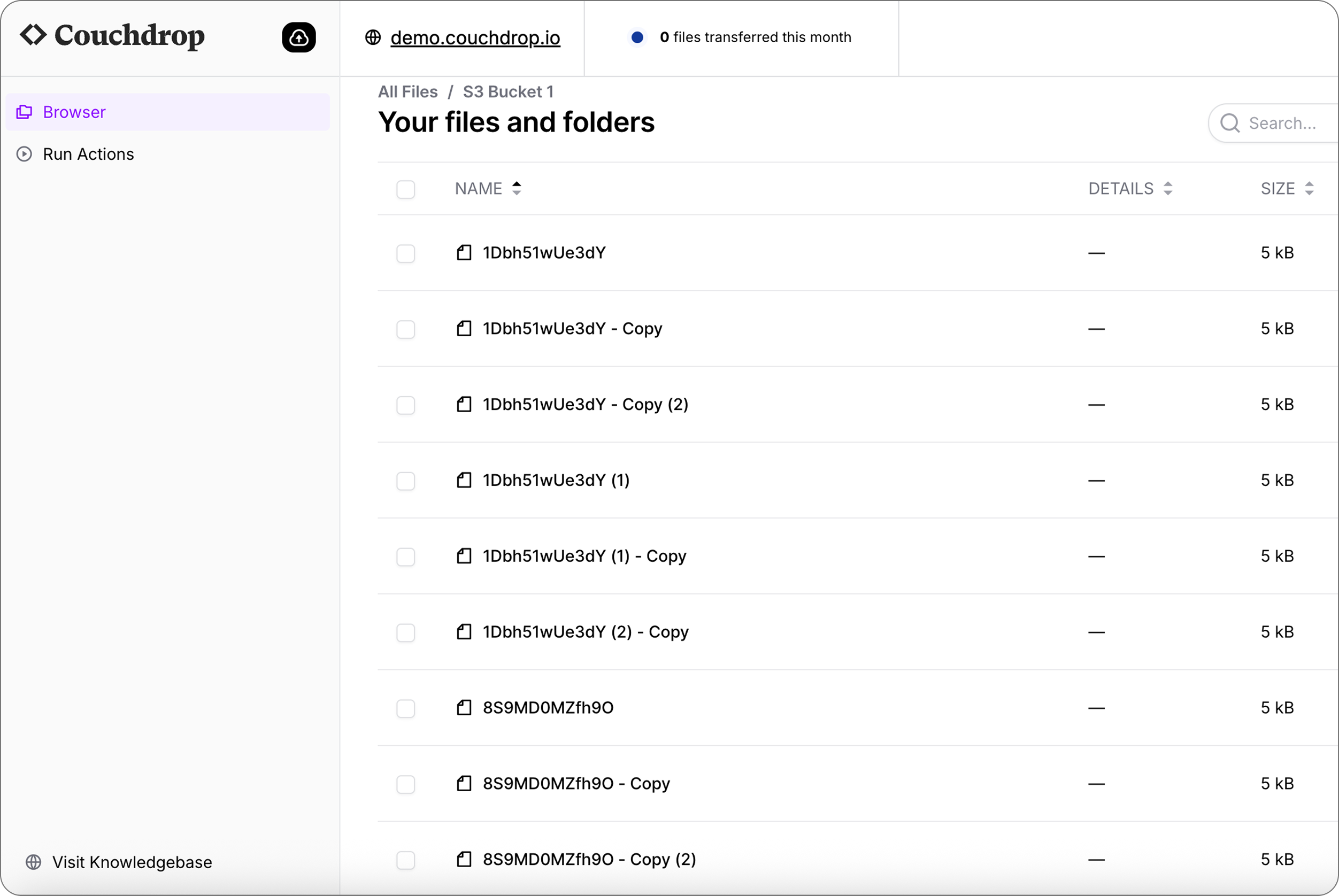
S3 bucket data in a simplified interface
As you can see, the interface changes depending on what permissions the user has; a full admin user can set up automations, shared links, upload portals, etc., while a user scoped to access an S3 bucket can only see the files in the bucket that acts as their root.
The sample user here can only see the S3 bucket and Shared Actions, which they can use to trigger workflows. The files are the same for both the admin and external user, but the external user has a much more streamlined experience.
When using this method, the external user can still connect via an SFTP client, but you can also disable this and only allow them to connect using the Couchdrop interface.
Try Couchdrop to simplify SFTP to S3
Couchdrop is the simple, secure, and reliable way to SFTP to S3. While this guide has shown you how to establish a simple way to have an external user connect to an S3 bucket via SFTP, there is a lot more you can do than simply transfer files.
Using automations, you can set up flows to completely automate workflows that include the file transfer itself as well as actions like decryption, renaming, copying, and archiving without code. You can even handle these file processing steps and then have the file pushed to another platform or system to consume it, such as saving the original to the S3 bucket while a modified copy is pushed to downstream processes.
Try a simpler way to SFTP to S3 with Couchdrop. All new registrations get a free 14-day trial with no credit card or demos required. Get started by registering for an account now.