Businesses that handle sensitive data should always make sure those files are protected and handled properly. At scale, it's simply not possible to check every single file manually and ensure sensitive files don't end up where they shouldn't be.
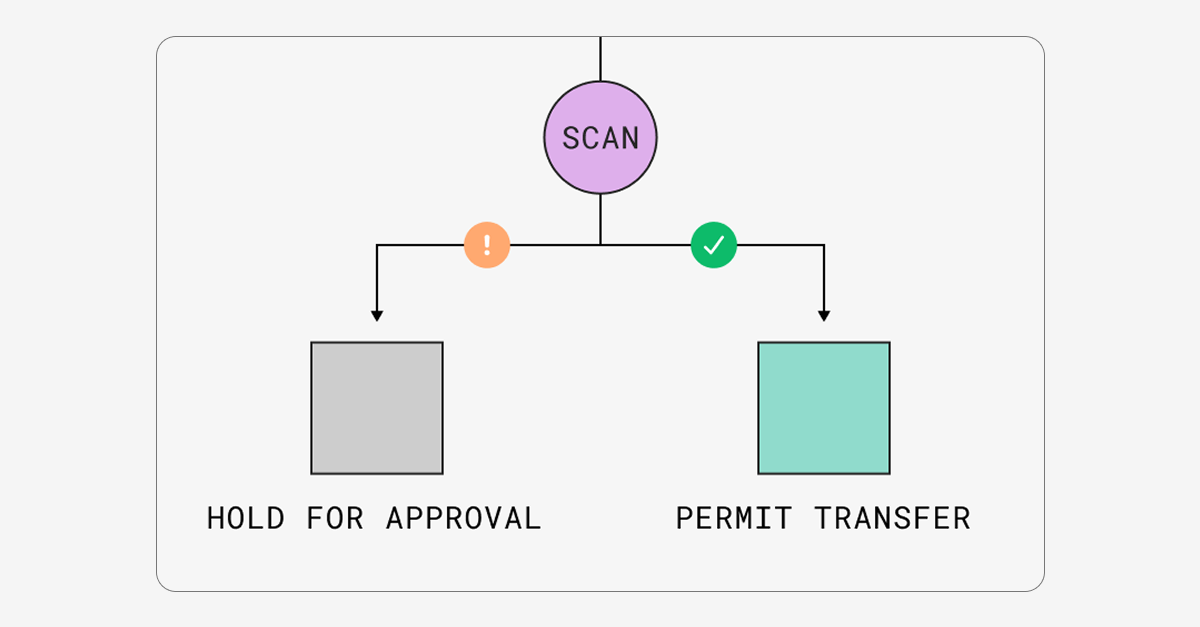
Couchdrop's Transfer Shield feature solves this issue by automatically flagging potentially sensitive files. It scans files and detects personal information, PHI, and other sensitive data to stop sensitive data from ending up in the wrong place.
How does Transfer Shield work?
Transfer Shield is a data loss prevention feature that activates whenever a person or process attempts to transfer a file to specified folders.
Scanning
Once enabled, Transfer Shield automatically scans for patterns that are common in specific types of files like driver's licenses and emails, and then the files are either allowed or denied based on the types you choose.
You can use Couchdrop's content type templates, such as PII or PCI data, or define your own set of content rules to identify specific content or file types.
What kinds of files can Transfer Shield check for?
Transfer Shield can check for many types of files and content types, including:
- Over a dozen content types: Banking data, personal information, UUIDs, and more
- Multiple file types: Applications, images, videos, and other
- Malware protection: Scan for and remove known malware automatically
- Uncommon transfer patterns: See when files are normally transferred and get notified of uncommon transfer behaviors
You can then decide whether to simply be notified about issues or add filtering rules to automate actions based on content type.
Filtering
While files are being scanned, they are held in a quarantine zone separate from your storage. Files that don't match any of your denial criteria are transferred after scanning, and files that are denied are permanently deleted.
You can also set files that match specific patterns to be held for review. This will send an Approval Task to an Admin to manually approve each relevant transfer.
Filtering works for both manual and automated transfers. By combining content rules with automations, you can create classification-based filtering flows to block, flag, or route transfers automatically based on file contents.
How can I get access to Transfer Shield?
If you're interested in protecting your important data with Transfer Shield, you can register your interest by emailing sales@couchdrop.io or you can request access to Transfer Shield now.